
The DataFrame
A spreadsheet in Python. The table at the centre of every analysis - rows, columns and the operations you'll use daily.
- ·What a DataFrame is
- ·Columns & rows
- ·Selecting data
- ·Filtering rows
- ·Adding columns
- ·Quick inspection
A single labelled column - a Series - is useful, but market data is a table: for every date there's an open, a high, a low, a close, and a volume, all in a row. Stack Series side by side, sharing one index, and you get the DataFrame - the single most important object in all of data analysis. If pandas is the engine of quant work, the DataFrame is the chassis. Spend real time here; almost everything that follows is just doing things to a DataFrame.
A DataFrame is a table
The wonderful thing is you've already been handed DataFrames - every yfinance history call returns one. Rows are dates (the index); columns are the OHLCV fields:
import yfinance as yf

# yfinance returns a DataFrame: rows are dates, columns are Open/High/Low/Close/Volume.
df = yf.Ticker("AAPL").history(period="6mo")
df = df[["Open", "High", "Low", "Close", "Volume"]].round(2)
df.index = df.index.date           # tidy the date index for display

print("Shape   :", df.shape)        # (rows, columns)
print("Columns :", list(df.columns))
print()
print("First 3 rows:")
print(df.head(3))Shape : (123, 5)
Columns : ['Open', 'High', 'Low', 'Close', 'Volume']
First 3 rows:
Open High Low Close Volume
2025-12-26 273.65 274.86 272.35 272.89 21521800
2025-12-29 272.18 273.85 271.84 273.25 23715200
2025-12-30 272.30 273.57 271.78 272.57 22139600df.shape told us (123, 5) - 123 days, 5 columns. df.columns lists the column names, and df.head(3) shows the first three rows. A DataFrame is, quite literally, a spreadsheet you drive with code.
A DataFrame is a table: rows share one index (here, dates), and each column is a named Series. df.shape gives (rows, columns), df.columns lists the headers, and df.head() previews the top rows.
Columns, rows, selecting and filtering
Three moves cover most of what you'll ever do to a DataFrame: pick columns, add columns, and filter rows:
import yfinance as yf

df = yf.Ticker("AAPL").history(period="3mo")[["Open", "Close", "Volume"]].round(2)
df.index = df.index.date

# One column is a Series; pick it with df["Close"].
print("Close column (last 3):")
print(df["Close"].tail(3))
print()

# Add a NEW column, computed from existing ones (open-to-close change).
df["Chg%"] = ((df["Close"] - df["Open"]) / df["Open"] * 100).round(2)

# Filter rows: keep only days that gained more than 2% from open to close.
big_up = df[df["Chg%"] > 2]
print("Days up more than 2% (open to close):")
print(big_up[["Close", "Chg%"]])Close column (last 3):
2026-06-22 297.01
2026-06-23 294.30
2026-06-24 293.08
Name: Close, dtype: float64
Days up more than 2% (open to close):
Close Chg%
2026-03-31 253.56 2.37
2026-04-15 266.18 3.20
2026-05-05 283.92 2.62
2026-06-02 315.20 2.52- Select one column with
df["Close"](you get a Series) or several withdf[["Open", "Close"]](a smaller DataFrame). - Add a column just by assigning to a new name:
df["Chg%"] = ..., computed from other columns - all vectorised, no loop. - Filter rows with a condition in brackets:
df[df["Chg%"] > 2]keeps only the days that gained more than 2%.
That filtering trick - df[df["some_column"] > value] - is called boolean masking, and it's the workhorse of data analysis. The inner part df["Chg%"] > 2 makes a column of True/False, and the outer df[...] keeps only the True rows. "Show me the days where..." is almost always a boolean mask.
Quick inspection: look before you leap
Before analysing any dataset, eyeball it. A handful of methods tell you what you're dealing with:
df.head()/df.tail()- first / last rows.df.shape- how many rows and columns.df.columns- the column names.df.info()- column types and how many values are missing.df.describe()- count, mean, min, max and quartiles for every numeric column at once.
This thirty-second habit catches missing data, wrong types and surprises before they corrupt your analysis - which is exactly the subject of Chapter 29.
A whole table, one chart
Because columns share an index, you can chart several together. Here the same DataFrame gives a price panel and a volume panel in one figure:
from pathlib import Path

import matplotlib

matplotlib.use("Agg")
import matplotlib.pyplot as plt
import seaborn as sns
import yfinance as yf

df = yf.Ticker("AAPL").history(period="6mo")

# Two columns of the same DataFrame, drawn as two stacked panels.
sns.set_theme(style="whitegrid")
fig, (ax1, ax2) = plt.subplots(
    2, 1, figsize=(8, 5), sharex=True, gridspec_kw={"height_ratios": [3, 1]}
)
ax1.plot(df.index, df["Close"], color="#7c83ff", lw=1.6)
ax1.set_title("AAPL - price and volume, last 6 months")
ax1.set_ylabel("Close (USD)")
ax2.bar(df.index, df["Volume"] / 1e6, color="#9aa0c4", width=1.0)
ax2.set_ylabel("Volume (M)")

out = Path(__file__).with_suffix(".png")
plt.savefig(out, dpi=110, bbox_inches="tight")
print("Rows plotted :", len(df))
print("Columns used :", ["Close", "Volume"])Rows plotted : 123 Columns used : ['Close', 'Volume']
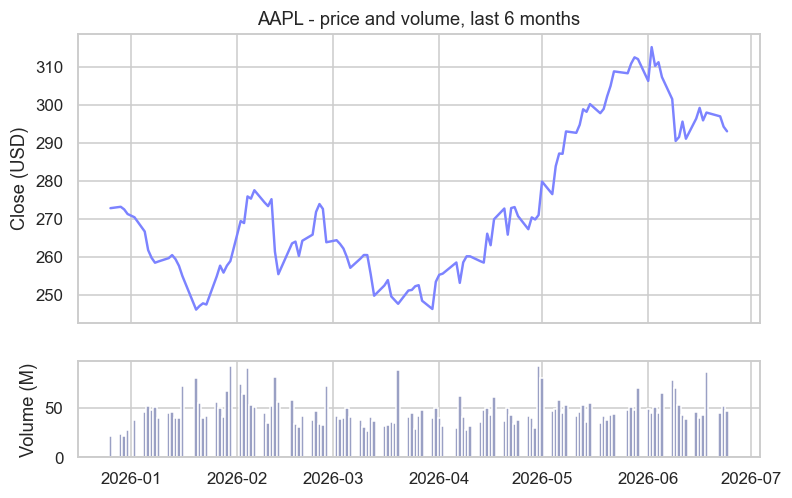
Two columns - Close and Volume - drawn from a single table, perfectly aligned on the same dates. That alignment, handled automatically by the shared index, is the quiet magic that makes the DataFrame so powerful.
YouTube was built on Python. The world's second most-visited website - serving billions of videos a day - was written largely in Python in its early years and still runs huge amounts of it. Google's unofficial motto captured the philosophy from Chapter 1: "Python where we can, C++ where we must." The DataFrames and tables you're learning to slice are the same tools powering analytics at exactly that scale.
More ways to slice a DataFrame
Selecting and filtering go a lot further than df["col"]. Four more tools cover almost everything you'll do day to day:
import numpy as np
import pandas as pd

df = pd.read_csv("reliance_6mo.csv", index_col="Date", parse_dates=True)

# .iloc selects by POSITION; .loc selects by LABEL.
print("First close (iloc[0])      :", df.iloc[0]["Close"])
print("Close on a date (loc)      :", df.loc["2026-06-24", "Close"])
print()

# Add a computed column, and a conditional one with np.where.
df["Range"] = df["High"] - df["Low"]
df["Day"] = np.where(df["Close"] >= df["Open"], "up", "down")

# sort_values ranks the whole table; here, the widest-range days.
print("Top 3 widest-range days:")
print(df.sort_values("Range", ascending=False).head(3)[["Close", "Range", "Day"]].round(2))
print()

# Filter on MULTIPLE conditions: & = and, | = or, each wrapped in ( ).
strong = df[(df["Day"] == "up") & (df["Range"] > 40)]
print("Up days with range > 40    :", len(strong))
print("Highest close :", df["Close"].max(), "on", df["Close"].idxmax().date())First close (iloc[0]) : 1551.03
Close on a date (loc) : 1313.6
Top 3 widest-range days:
Close Range Day
Date
2026-01-06 1500.66 72.37 down
2026-04-06 1298.70 68.69 down
2026-04-27 1359.51 60.32 up
Up days with range > 40 : 8
Highest close : 1584.97 on 2026-01-02.iloc[]vs.loc[]-ilocselects by position (df.iloc[0], the first row),locby label (df.loc["2026-06-24"], a specific date). This is the single most important distinction in pandas indexing.np.where(condition, a, b)builds a conditional column in one line - here tagging each day"up"or"down"..sort_values("col")ranks the whole table by a column (addascending=Falsefor biggest-first).- Multiple-condition filters: combine masks with
&(and) and|(or), wrapping each condition in brackets -df[(df["Day"] == "up") & (df["Range"] > 40)].
Two gotchas with filtering. Use & and |, not the words and/or, when combining column conditions - and wrap each condition in parentheses: df[(df["a"] > 1) & (df["b"] < 2)]. Forgetting the brackets is the single most common pandas error beginners hit; now you'll recognise it instantly.
Slicing ranges of rows and columns
Beyond picking single rows, you can take ranges - and you give two slices at once, [rows, columns], just like a 2D NumPy array. .iloc slices by position (end excluded); .loc slices by label (end included):
import pandas as pd

df = pd.read_csv("reliance_6mo.csv", index_col="Date", parse_dates=True)

# .iloc = by POSITION (end excluded). Two slices: [rows, columns].
print("first 2 rows, by position:")
print(df.iloc[0:2, 0:4])          # rows 0-1, columns 0-3 (Open..Close)
print()

# .loc = by LABEL (end included). Slice a date range AND a column range.
print("a date range, columns Open..Close, by label:")
print(df.loc["2026-06-22":"2026-06-24", "Open":"Close"])first 2 rows, by position:
Open High Low Close
Date
2025-12-24 1565.46 1568.45 1546.45 1551.03
2025-12-26 1547.54 1553.82 1547.15 1552.02
a date range, columns Open..Close, by label:
Open High Low Close
Date
2026-06-22 1316.7 1344.9 1314.1 1326.5
2026-06-23 1328.9 1333.0 1304.0 1309.5
2026-06-24 1305.7 1322.0 1297.5 1313.6So df.iloc[0:2, 0:4] is "the first two rows and first four columns," and df.loc["2026-06-22":"2026-06-24", "Open":"Close"] is "those three dates, columns Open through Close." Same comma-separated [rows, columns] idea as NumPy - now with dates and column names as the labels.
Single vs MultiIndex columns (a yfinance gotcha)
Usually a DataFrame's columns are a simple flat list (Open, High, Close...). But sometimes columns have two levels - a MultiIndex - and this trips up everyone the first time, because yfinance returns one:
import yfinance as yf

# Ticker().history() gives SINGLE-level columns: Open, High, Low, Close, ...
hist = yf.Ticker("AAPL").history(period="5d")
print("history() columns :", list(hist.columns)[:5])
print("  hist['Close'] is a", type(hist["Close"]).__name__)
print()

# yf.download() gives a MULTI-INDEX: each column is a (field, ticker) pair.
dl = yf.download(["AAPL", "MSFT"], period="5d", progress=False)
print("download() columns:", list(dl.columns)[:4])
print("  dl['Close'] is a", type(dl["Close"]).__name__, "-> columns", list(dl["Close"].columns))
print(" one stock: dl['Close']['AAPL'].iloc[-1] =", round(float(dl["Close"]["AAPL"].dropna().iloc[-1]), 2))history() columns : ['Open', 'High', 'Low', 'Close', 'Volume']
hist['Close'] is a Series
download() columns: [('Close', 'AAPL'), ('Close', 'MSFT'), ('High', 'AAPL'), ('High', 'MSFT')]
dl['Close'] is a DataFrame -> columns ['AAPL', 'MSFT']
one stock: dl['Close']['AAPL'].iloc[-1] = 293.08Here's the whole story: yf.Ticker("AAPL").history() gives plain columns, so df["Close"] is a Series (as you'd expect). But yf.download(...) gives a MultiIndex where each column is a (field, ticker) pair - so df["Close"] returns a whole DataFrame (one column per ticker), and you reach a single stock with a second key: df["Close"]["AAPL"].
If yf.download()'s two-level columns get in your way, you have easy outs: select with two keys (df["Close"]["AAPL"]), grab one field with df.xs("Close", axis=1, level=0), or sidestep it entirely by using yf.Ticker(sym).history() for a single stock (which is exactly what this course does - that's why our examples have simple columns). Knowing why the columns are nested is what saves you when it happens.
Combining tables: concat and merge
Real analysis often means stitching tables together, and there are two distinct jobs. concat stacks tables (more rows); merge joins them on a shared key (more columns), exactly like a database JOIN:
import pandas as pd

# Two small tables about the same stocks.
prices = pd.DataFrame({"Symbol": ["RELIANCE", "TCS", "INFY"],
                       "Close": [1313.6, 2109.0, 1056.6]})
sectors = pd.DataFrame({"Symbol": ["RELIANCE", "TCS", "WIPRO"],
                        "Sector": ["Energy", "IT", "IT"]})

# concat: stack tables on top of each other (they share the same columns).
more = pd.DataFrame({"Symbol": ["HDFCBANK"], "Close": [1642.4]})
print("concat - stack the rows:")
print(pd.concat([prices, more], ignore_index=True))
print()

# merge: join two tables on a shared key column, like a database JOIN.
joined = prices.merge(sectors, on="Symbol", how="inner")   # inner = keep only matches
print("merge on Symbol (inner):")
print(joined)concat - stack the rows:
Symbol Close
0 RELIANCE 1313.6
1 TCS 2109.0
2 INFY 1056.6
3 HDFCBANK 1642.4
merge on Symbol (inner):
Symbol Close Sector
0 RELIANCE 1313.6 Energy
1 TCS 2109.0 ITpd.concat([a, b])stacks rows - use it to glue together tables with the same columns (this quarter's data under last quarter's).a.merge(b, on="Symbol")lines up rows by a matching key column - here attaching each stock's sector to its price. Thehowargument controls what to keep:"inner"(only matches, as here),"left"(all ofa),"outer"(everything). It's the spreadsheetVLOOKUP, done properly.
A DataFrame cheat-sheet
The greatest hits, grouped by job - know they exist, look up the details:
- Inspect:
.head(),.tail(),.shape,.info(),.describe(),.columns,.dtypes - Select & slice:
df["col"],df[["a","b"]],.loc[rows, cols](by label),.iloc[rows, cols](by position),.at[](one cell) - Filter:
df[mask], multi-condition with&/|,.query("col > 5"),.between() - Add / change:
df["new"] = ...,.assign(),np.where(),.rename(columns=...),.drop(columns=...) - Order & rank:
.sort_values(),.sort_index(),.nlargest(n, "col"),.nsmallest() - Combine:
pd.concat([a, b])(stack rows),a.merge(b, on="key", how=...)(join on a key),a.join(b)(join on the index) - Columns: flat vs MultiIndex (
yf.downloadgives two-level(field, ticker)); flatten withdf.xs(...)ordf.droplevel(1, axis=1) - Summarise:
.sum(),.mean(),.groupby()(Chapter 31),.value_counts(),.corr()(column correlations) - Apply your own logic:
.apply(func)down columns,df["col"].map(...)per value
This is the working vocabulary of data analysis. You won't use all of it every day, but knowing the shape of what's available is exactly what lets you look up the rest.
Try it yourself
- Load 1 year of any stock with
yf.Ticker("MSFT").history(period="1y")and print its.shapeand.describe(). - Add a column
df["Spread"] = df["High"] - df["Low"](the daily range), then find the day with the largest spread. - Filter for high-volume days:
df[df["Volume"] > df["Volume"].mean()]. How many days traded above the average?
Recap
- A DataFrame is a table of named columns (each a Series) sharing one index - exactly what
yfinancereturns. - Select columns with
df["col"]/df[["a","b"]]; add a column by assigning to a new name; filter rows with boolean masksdf[df["col"] > x]. - Inspect first with
head,shape,columns,info,describe- it catches problems early. - Columns share an index, so they align automatically - making multi-column maths and charts effortless.
You now know what a DataFrame is. The next practical questions are: how do you get one from anywhere - a CSV file, a download - and how do you save it? Chapter 28 is all about loading and storing market data, the gateway to working with your own datasets.