
Loading Market Data
Real prices, in two lines. Pull US stocks with yfinance and read a CSV, then look before you leap with head() and info().
- ·Reading a CSV
- ·Fetching with yfinance
- ·head, tail, info
- ·describe()
- ·Setting an index
- ·Saving to CSV
You know what a DataFrame is and what to do with one. The obvious next question: where do they come from? In practice, two places - a live download (we've been using yfinance) and a file on disk, almost always a CSV. Loading data is the very first line of every analysis, so this short, practical chapter makes sure you can always get a table in - and save one back out - whatever the source.
Fetching with yfinance, and saving a CSV
You've already fetched data with yfinance; here we add the other half - writing it to a CSV so you never have to download it again. We'll use an Indian stock this time:
import yfinance as yf

# ".NS" is Yahoo Finance's suffix for NSE-listed Indian stocks.
df = yf.Ticker("RELIANCE.NS").history(period="6mo")[["Open", "High", "Low", "Close", "Volume"]]
df = df.round(2).dropna()          # drop incomplete rows (Yahoo leaves today's bar empty)
df.index = df.index.date
df.index.name = "Date"

# Save the whole table to a CSV file - just one line.
df.to_csv("reliance_6mo.csv")
print("Saved", len(df), "rows to reliance_6mo.csv")
print(df.tail(3))Saved 124 rows to reliance_6mo.csv
Open High Low Close Volume
Date
2026-06-22 1316.7 1344.9 1314.1 1326.5 12931213
2026-06-23 1328.9 1333.0 1304.0 1309.5 15400184
2026-06-24 1305.7 1322.0 1297.5 1313.6 11030917Two India-specific notes. First, Yahoo's code for an NSE stock is the symbol plus .NS (so RELIANCE.NS) - we'll map symbols across sources properly in Chapter 34. Second, .dropna(): Yahoo often leaves the current day's bar empty until the close, so we drop incomplete rows - a small but important habit with Indian data, and the heart of the next chapter. Then df.to_csv("reliance_6mo.csv") writes the whole table to disk in one line.
Reading a CSV back
To load that file - or any CSV someone hands you - use pd.read_csv. Two arguments earn their keep with time-series data:
import pandas as pd

# Read the CSV back into a DataFrame, using the Date column as the index.
df = pd.read_csv("reliance_6mo.csv", index_col="Date", parse_dates=True)

print("Shape   :", df.shape)
print("Columns :", list(df.columns))
print()
print("Most recent rows:")
print(df.tail(3))
print()
print("Close-price summary:")
print(df["Close"].describe().round(2))Shape : (124, 5)
Columns : ['Open', 'High', 'Low', 'Close', 'Volume']
Most recent rows:
Open High Low Close Volume
Date
2026-06-22 1316.7 1344.9 1314.1 1326.5 12931213
2026-06-23 1328.9 1333.0 1304.0 1309.5 15400184
2026-06-24 1305.7 1322.0 1297.5 1313.6 11030917
Close-price summary:
count 124.00
mean 1388.35
std 69.07
min 1258.80
25% 1338.58
50% 1384.30
75% 1428.84
max 1584.97
Name: Close, dtype: float64index_col="Date" tells pandas to use the Date column as the row index (instead of a plain 0,1,2 counter), and parse_dates=True turns those date strings into real datetime objects you can do time maths on. With those two, your loaded table behaves exactly like a freshly downloaded one.
df.to_csv("file.csv") saves a table to disk; pd.read_csv("file.csv") loads it back. For time series, pass index_col="Date" and parse_dates=True so the dates become a proper datetime index.
describe(): the thirty-second X-ray
Notice the last line of that example: df["Close"].describe(). It returns a whole statistical summary at once - count, mean, standard deviation, min, max, and the quartiles. For our Reliance data it instantly reveals the six-month range (a low near 1259, a high near 1585) and the typical level (~1388). Run describe() on any new dataset before anything else; it's the fastest way to understand what you're holding and to spot anything odd.
From file to chart
Once a CSV is saved, you never need the internet again - load and chart entirely offline:
from pathlib import Path

import matplotlib

matplotlib.use("Agg")
import matplotlib.pyplot as plt
import pandas as pd
import seaborn as sns

# Load straight from the CSV - no internet needed once it is saved.
df = pd.read_csv("reliance_6mo.csv", index_col="Date", parse_dates=True)

sns.set_theme(style="whitegrid")
fig, ax = plt.subplots(figsize=(8, 4))
ax.plot(df.index, df["Close"], color="#21c87a", lw=1.7)
ax.set_title("RELIANCE (NSE) - close, last 6 months")
ax.set_ylabel("Price (Rs)")

out = Path(__file__).with_suffix(".png")
plt.savefig(out, dpi=110, bbox_inches="tight")
print("Charted", len(df), "rows loaded from the CSV")Charted 124 rows loaded from the CSV
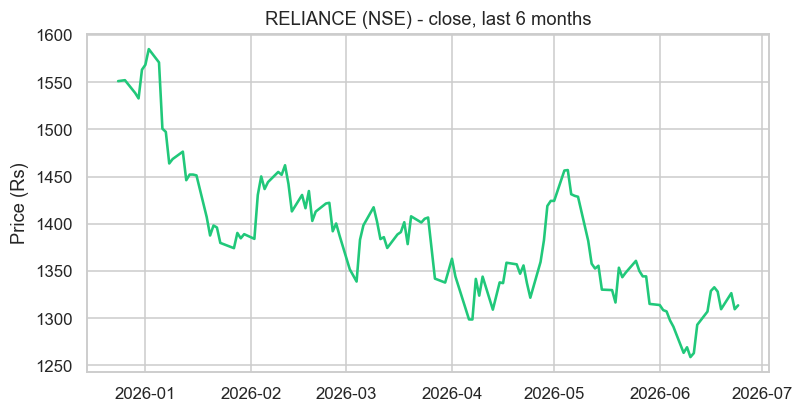
Load, then plot - the whole pipeline from a file to a finished chart of six months of Reliance, in a dozen lines. This load-analyse-visualise loop is the daily rhythm of working with market data.
The humble CSV is older than the personal computer. Comma-separated values date back to the early 1970s - they predate the PC, the spreadsheet, and pandas itself by decades, and weren't even formally standardised until 2005 (in a document called RFC 4180). Plain, unglamorous, and utterly universal, CSV has outlived countless flashier formats. When a fifty-year-old idea is still the default way the world swaps data, that's a feature, not an accident.
Try it yourself
- Download a US stock with
yf.Ticker("MSFT").history(period="1y"), save it withto_csv("msft.csv"), then read it back withread_csv. - Open your saved
reliance_6mo.csvin a plain text editor (or Excel). Confirm it really is just commas and numbers - nothing magic. - Run
df.describe()on the whole Reliance DataFrame (not just Close). Which column has the largest numbers, and why?
Recap
- Get a DataFrame from a download (yfinance) or a file (CSV) - the two everyday sources.
df.to_csv("file.csv")saves;pd.read_csv("file.csv")loads - addindex_col="Date"andparse_dates=Truefor time series.- For Indian stocks on Yahoo, use the
.NSsuffix and.dropna()to drop incomplete bars. describe()gives an instant statistical summary - run it on every new dataset first.
We've quietly slipped a .dropna() into the last two chapters without dwelling on it. That's because real data is messy - missing values, wrong types, duplicates - and cleaning it is half the job. The next chapter tackles that head-on: data cleaning, with the genuine quirks of the data you just downloaded.