
The editor
The Scripts panel in /trading, control by control: creating and opening scripts, highlighting, the console and status bar, saving, applying to the chart, and what the editor does not do yet.
On this page
The Scripts panel is where you write OpenScript in /trading. This page walks through every part of it: the header and its menus, creating a script, the editing area, the checks that run when you save, the console that reports them, where a saved script lives, and how a script reaches the chart. It ends with what the panel does not do yet, so you know which habits to bring with you.
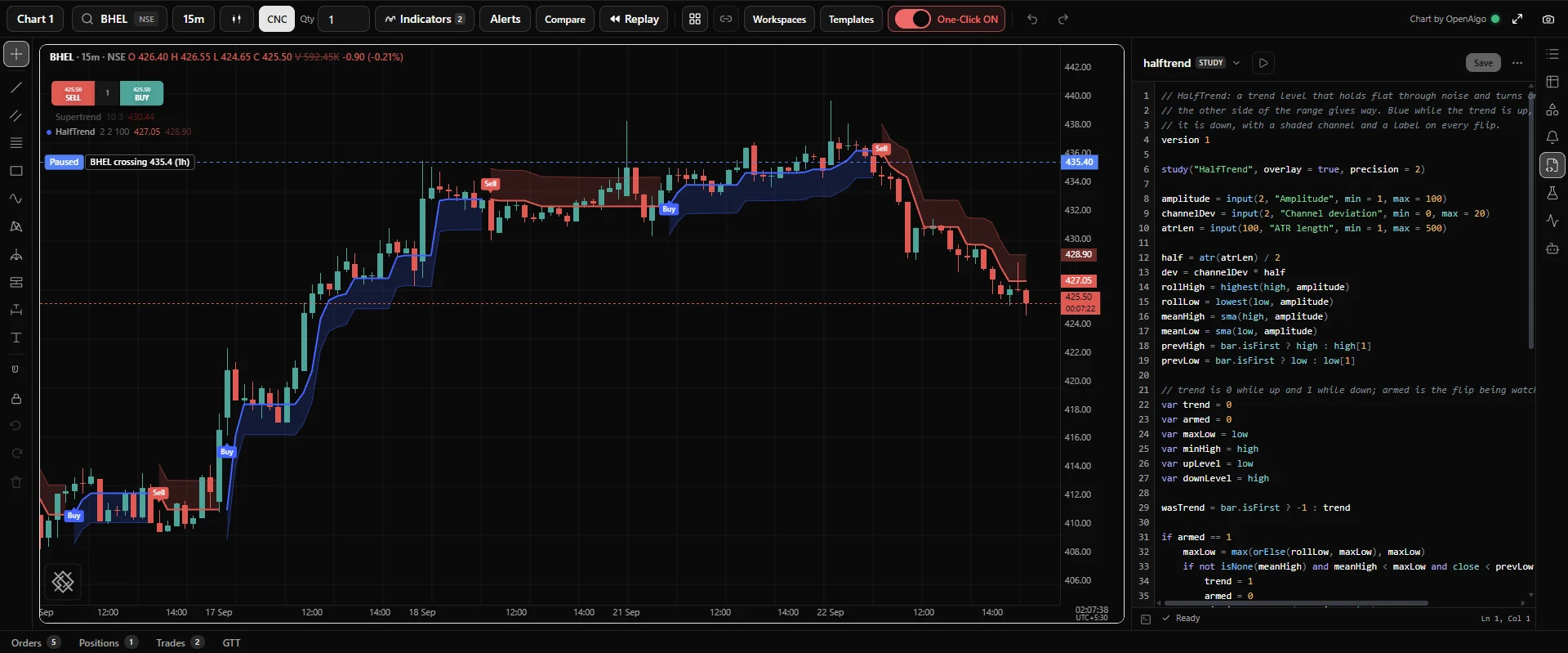
Opening the panel
Click Scripts on the toolbar at the right edge of /trading. The panel opens between the chart and the toolbar, and works on the chart pane you last clicked. Click Scripts again, or press Esc while the cursor is not in a text field, to close it and give the chart its full width back.
The panel is 480 pixels wide to begin with. Drag its inner edge to make it anywhere from 320 to 760 pixels wide; it is the one panel allowed to grow that far, because while you write, the code is the thing you are working on and the chart is the reference. The width is remembered.
When you open the panel, it reopens the script you last opened in this browser. A study's source can also be opened from the chart: see From the chart to the source.
The header
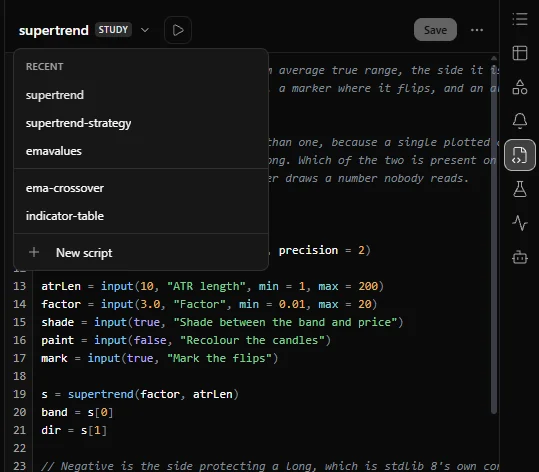
The header is one row, and it is the panel's whole navigation.
| Control | What it does |
|---|---|
| Script name | The open script's name, without the .oscript ending, or No script. Click it for a menu: Recent lists the three scripts you opened most recently in this browser, then every other saved script, then New script |
| Kind badge | STUDY or STRATEGY, read from the script's declaration |
| Apply to chart | The play button. Puts the saved script on the chart. See Applying a script |
| Save | Checks and saves the script. Enabled when there are unsaved changes |
| Script actions | The three dots. New script, Discard unsaved changes and Delete script |
Creating a script
Choose New script from either menu, or from the button in an empty panel. A form opens under the header:
- Name. Letters, digits, dots, dashes and underscores, starting with a letter or a digit, up to 64 characters. The panel adds the
.oscriptending. Create stays disabled until the name is valid, and once you start typing the form says what is wrong with it. - Kind. Study computes and draws on the chart. Strategy draws and also places orders. Choose before you write, because the two start from different code.
- Create, or Enter, makes the file. Cancel, or Esc, closes the form.
A new script is never blank. It opens with a working starter titled from the name you typed, so range-breakout becomes "Range breakout". A study starts as a moving average with a length setting:
version 1
study("Range breakout", overlay = true)

length = input(20, "Length")
average = sma(close, length)

plot(average, "Average", aqua)
A strategy starts as an EMA cross that buys and closes:
version 1
strategy("Range breakout", overlay = true, qty = 1)

fast = ema(close, 9)
slow = ema(close, 21)

plot(fast, "Fast", aqua)
plot(slow, "Slow", orange)

if crossUp(fast, slow)
    buy(qty = 1)

if crossDown(fast, slow)
    close()
Both are saved the moment they are created, so the new script is in the menu straight away.
Writing
Here the editor holds the HalfTrend study from Example scripts:
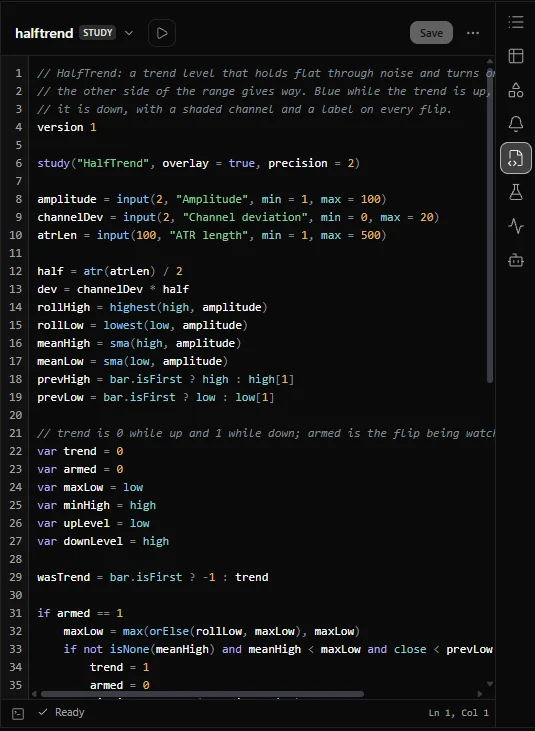
The editing area is plain text with three aids.
Highlighting from the language itself. The colours come from the OpenScript lexer (the part of the compiler that splits text into words and symbols), not from a separate list of words kept by the panel. Keywords, library functions, library values such as close and aqua, numbers, strings, colour literals such as #ff8800, comments and punctuation each have their own shade. Because the colours come from the language's own tables, a name added to the language is coloured as soon as OpenAlgo ships that version. A script longer than 65,536 characters is shown without colours, to keep typing quick.
A numbered gutter. Every line has its number, so a message about line 13 is easy to find. When the script has an error, the number of the line the first error is on turns red.
No wrapping. A long line stays one line and the area scrolls sideways, so each line number always sits beside the line it names.
Three habits matter in this editor:
- Indent with spaces. A block is the lines indented under an
if, aforor a function, and four spaces per level is the convention. A tab in the indentation is an error (OS1002), so the Tab key never types one: it indents the line by four spaces, and with several lines selected it moves each of them in by one level, keeping their indentation relative to each other. Shift+Tab moves them back out. To leave the editor with the keyboard, press Esc and then Tab. - Keep one statement per line. There are no semicolons and no braces. A long call can carry on over several lines while its brackets are open. See Script structure.
- Paste freely. Text pasted from a file whose lines end with a carriage return as well as a line feed is normalised as it arrives, so line and column numbers in messages always match what you see.
Checking and the console
The panel checks a script with the real compiler when you open it and every time you save. It does not check while you type: make a change, save, and read the result.
The status bar at the bottom of the panel always says where the script stands:
| Status bar | Means |
|---|---|
| Working | A save, open or delete is in progress |
| Unsaved changes | The text differs from the saved file. Save to check it |
| 1 error, so it will not run yet (or 2 errors, and so on) | Saved, but it does not compile. It cannot be applied or backtested |
| Ready, with 1 warning | It compiles and will run. A warning is worth reading |
| Ready | It compiles with nothing to report |
The right end of the status bar shows the cursor position as Ln and Col, counted the same way as the messages.
The button at the left of the status bar opens the console, a drawer under the editor. The button shows how many messages there are and turns red when any of them is an error. The console is closed by default and says "Nothing to report." when a script is clean.
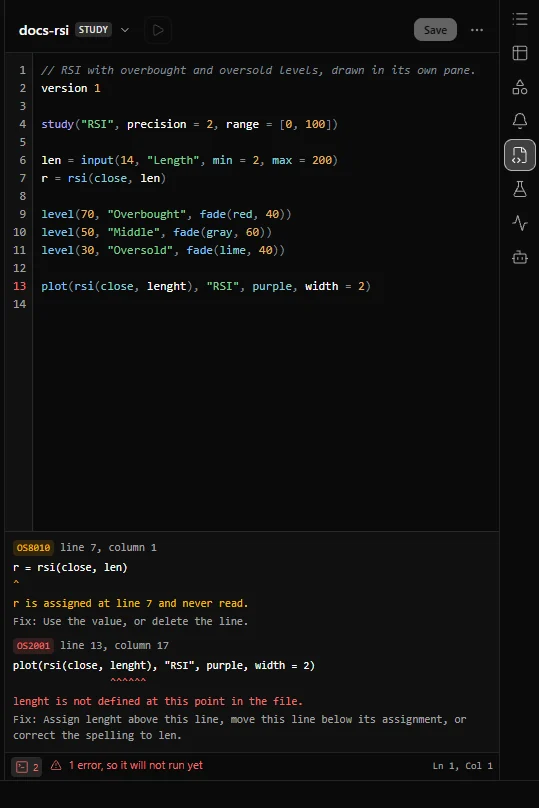
Each message in the console has four parts: its code and position, the line it is about with the exact characters underlined, what is wrong, and how to fix it. Take this study, with length misspelt on line 9:
version 1
study("RSI", precision = 2, range = [0, 100])

len = input(14, "Length", min = 2, max = 200)

level(70, "Overbought", fade(red, 50))
level(30, "Oversold", fade(lime, 50))

plot(rsi(close, lenght), "RSI", purple, width = 2)
Saving it puts this error in the console:
OS2001  line 9, column 17
plot(rsi(close, lenght), "RSI", purple, width = 2)
                ^^^^^^
lenght is not defined at this point in the file.
Fix: Assign lenght above this line, move this line below its assignment, or correct the spelling to len.
It also lists a warning, OS8018, because the Length input is never read while the typo stands. Messages are listed in line order, so the warning about line 4 comes first.
- Errors stop the script from running until they are fixed. Their codes run from OS1 to OS7, and the first digit says what kind of problem it is: 1 is syntax, 2 names and types, 3 arguments, 4 runtime, 5 limits, 6 data and 7 orders. Most of the ones you see when you save are OS1, OS2 and OS3; most OS4 to OS7 codes are raised while a script runs.
- Warnings start with OS8 and never stop anything. Each one describes a shape that is almost always a mistake, such as a value assigned and never read (OS8010) or a stateful call inside a branch (OS8001). A stateful call is one that remembers earlier bars, such as
ema()orcrossUp().
Every code is documented, with its cause and a before and after example, on the errors pages. The codes you will meet most often while writing:
| Code | Says |
|---|---|
| OS1002 | A line is indented with a tab |
| OS1003 | One line of a block is indented differently from the others |
| OS2001 | A name is used before it is assigned, or is misspelt |
| OS2003 | Two types do not mix, such as a string plus a number. Use text() |
| OS3006 | A call such as plot is inside an if. Keep it at the top level and pass none to hide it |
| OS8003 | The file has no version 1 line |
The console also shows problems that are not about the script, in red: a save the server refused, or "There is no chart open to add this study to." when Apply had nowhere to go.
Saving
Click Save, or press Ctrl+S (Cmd+S on a keyboard with a Command key). A save does three things, in order:
- Checks the script, and shows the result in the status bar and the console.
- Writes the source, whatever the check said. A script with errors is still saved, so a half finished idea is never lost.
- Stores the compiled program beside the source, but only when the script compiles. The stored program is what the Strategies panel runs on the server; the chart and the Backtest panel compile the saved source in your browser. A script saved with errors has no stored program and cannot be applied, backtested or deployed until it is fixed and saved again.
Scripts are stored on the OpenAlgo server, as one .oscript file each in the strategies/openscript folder, so they are the same from any browser you log in from. An installation that runs OpenAlgo in a container keeps that folder on a named volume, so your scripts survive a rebuild and an upgrade. A script can be up to 256 KB.
Unsaved changes
What you type and have not saved is kept as a draft of that script, in this browser. Switching to another script, opening another panel or reloading the page does not lose it: open the script again and the draft is back in the editor, with Unsaved changes in the status bar. Saving writes the draft to the file, and the draft is gone. To throw a draft away and go back to the saved file, choose Discard unsaved changes in the Script actions menu and confirm with Discard changes.
If the saved file changed after the draft was typed, because it was saved from another tab or restored from its backup, the panel says so above the editor before you save: saving then replaces that newer copy with your draft.
Applying a script
Apply to chart, the play button, is enabled when the open script is saved and compiles. Until then, hovering it says "Save a script that compiles, and it can be applied to the chart." What it does depends on the kind of script.
- A study is added to the chart pane you last clicked, as it was last saved, with a legend row and a settings dialog built from its inputs. When that pane already has the script, pressing Apply again after a save updates the copy there to the saved version rather than adding a second one, so an alert set on it keeps working. If the new version stops on the chart's first bar, the copy already there is kept as it was, and a message says why. To remove a copy, use the x on its legend row, or Remove under Active in the Indicators dialog.
- A strategy is added to the chart the same way, and then the panel switches to Backtest, which runs the strategy over the chart's history and marks every fill on the price. See Your first strategy.
If no chart is open, nothing is added and the console says so.
From the chart to the source
A saved script that compiles is listed in the chart's Indicators dialog, under Yours, My scripts, above the built-in indicators under Library. The dialog reads your scripts each time it opens, so a script saved a moment ago is already there.
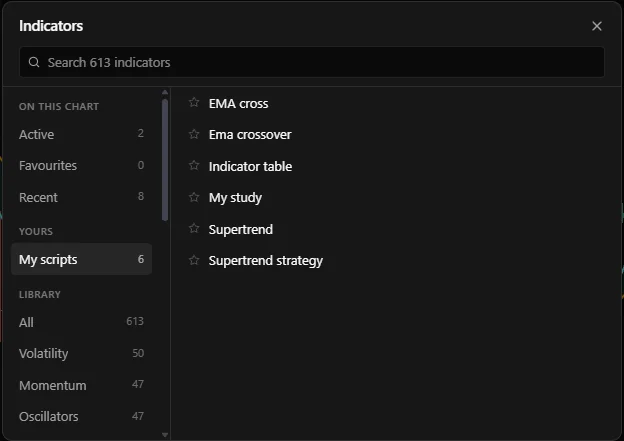
Every script you wrote carries a braces button, {}, on its legend row, beside the gear that opens its settings. Clicking it opens that script's source in the Scripts panel. If that script is already open in the panel, it is left as it is, unsaved edits included.
Deleting a script
Delete script in the Script actions menu deletes the open script straight away, with no confirmation and no undo. It removes the source, its backup and its compiled program. A deployment of a deleted strategy can no longer start, so remove its deployments in the Strategies panel as well.
What the editor does not do yet
The openalgo-script library ships six editor functions: highlighting, completion, diagnostics, hover, signature help and formatting. The /trading panel uses the highlighting, and shows the compiler's diagnostics when you open or save a script rather than as you type. The /trading page in current OpenAlgo releases runs version 0.5.0 of the library, and the six functions are the same in version 0.8.1, which these pages describe.
So, in this release, the panel does not:
- offer completion as you type, or show a function's signature while you fill in its arguments;
- show a card when you hover over a name;
- format the file for you;
- translate a script written in another chart scripting language. The library's importer does that, and reports what it could not carry across with codes in a ninth range, OS9. See Importing a script.
The reference covers what those features would show you. Every entry in the Reference section lists a function's signature, its arguments with their defaults and accepted values, and the first bar it has a value on, all read from the compiler. If you build OpenScript into your own portal, all six functions are available to you: see Editor integration.
Keyboard
| Keys | Does |
|---|---|
| Ctrl+S, Cmd+S | Save the open script |
| Enter | In the new script form, create the script |
| Esc | In the new script form, cancel it. Elsewhere, when the cursor is not in a text field, close the panel |
| Tab | In the editor, indent the line, or every selected line, by four spaces |
| Shift+Tab | In the editor, remove one level of indentation from the line, or every selected line |
| Esc, then Tab | Move the focus out of the editor |
Related. Quickstart, Your first strategy, Script structure, Reading an error, Debugging, Troubleshooting, Editor integration