
Using AI assistants
The whole OpenScript documentation as one markdown file and an llms.txt map, how to give them to an AI assistant, what to tell it, and how to check the script it writes.
On this page
An AI assistant can write OpenScript, also called OpenAlgo Script, well if it has the reference in front of it, and badly if it works from memory. OpenScript is a young language with its own rules, so an assistant left to guess tends to borrow names and habits from other languages, and the result does not compile. This page covers the two files this documentation publishes for assistants, how to hand them over, an instruction that keeps the assistant inside the language, and how to check what comes back in the /trading editor. Everything here works with any assistant that accepts an attached file or can read a web page.
Two files for assistants
Every time this documentation is built, two plain text files are generated from the same pages you are reading.
| File | Address | What it holds | Use it when |
|---|---|---|---|
| Complete reference | openscript-reference.md | Every page of this documentation as one markdown file: the guides, every reference entry with its signature, parameter table and first bar with a value, every error with its message and fix, and every example | You want the assistant to have everything at once |
| Map | llms.txt | A short index: one line per page with its title, its address and a one-sentence summary, and a link to the complete reference | The assistant can read web pages and should fetch only what it needs |
Both files are written for machines as much as for people, so they drop what an assistant cannot use. Screenshots are left out, callouts become plain text under a short label, and a link to a reference entry becomes the entry's name in code format. A reference entry that is planned rather than available carries "(planned, not available yet)" in its heading, which is what lets an assistant avoid it.
The complete reference opens with the version it describes, for example # OpenScript 0.8.1 complete reference, and every page inside it carries a Source: line with that page's address on this site. The map follows the llms.txt convention: a title, a one-line summary, then sections of links with a sentence each.
A worked example
Here is the whole loop in miniature. You give the assistant the complete reference and the instruction from the next section, then ask:
Write a study for a 5-minute NSE chart that draws a 9 and a 21 period EMA,
and marks the bar where the 9 crosses above the 21 while RSI(14) is above 50.
I also want an alert on that condition.
A good answer is one complete script that follows every rule in the instruction:
version 1
study("EMA cross with RSI filter", overlay = true, precision = 2)

fastLen = input(9, "Fast EMA", min = 1, max = 200)
slowLen = input(21, "Slow EMA", min = 2, max = 400)
rsiLen = input(14, "RSI length", min = 2, max = 100)

fast = ema(close, fastLen)
slow = ema(close, slowLen)
r = rsi(close, rsiLen)

plot(fast, "Fast EMA", aqua, width = 2)
plot(slow, "Slow EMA", orange, width = 2)

if crossUp(fast, slow) and r > 50
    signal("BUY", lime, at = "below", shape = "arrowUp")
    alert("Fast EMA crossed above slow EMA with RSI above 50", id = "emaCrossRsi")
Notice what it did not do: no invented function names, no second declaration, a title on every plot, the stateful calls (ema() and rsi(), which keep values from bar to bar) worked out at the top level rather than inside the if, and an id on the alert so its name survives later edits. You then paste it into the /trading editor, as described below, and save it: the status bar reads Ready when it compiles.
Giving the assistant the documentation
There are two ways, and which one fits depends on what your assistant can do.
Attach the file. Download openscript-reference.md and attach it to the conversation, the way you would attach any document. This works with any assistant that accepts file attachments, including one that cannot browse the web, and it guarantees the assistant is reading the version you downloaded. The file holds the whole documentation, well over a megabyte of text, which is more than some assistants accept. If yours refuses it, use the map to find the pages your task needs and paste those instead.
Point the assistant at the address. If your assistant can read web pages, give it the map:
Before you write any OpenScript, read https://openalgo.in/script/llms.txt
and then the complete reference it links to, or at least the pages that
cover what I am asking for.
The map lets the assistant fetch only the pages a task needs, for example the Strategies pages for an order question, or a single reference page for one function.
Download a fresh copy when the version changes. The first line of the complete reference names the OpenScript version it describes, and Release notes tells you when a new version arrives.
What to tell the assistant
Paste this instruction at the start of the conversation, together with the reference. Each rule prevents a mistake assistants make often.
You are writing OpenScript (also called OpenAlgo Script), the trading language
of the /trading page in OpenAlgo. Use the OpenScript reference I have given you
as the only source of truth for names, arguments and behaviour.

Rules for every script:
1. The first line is exactly: version 1
2. The file has exactly one declaration. Use study("Title", ...) for a script
   that only calculates and draws, and strategy("Title", ...) for one that
   places orders. Never both.
3. Use only functions, values and argument names that appear in the reference.
   Check every name against the reference before you use it. Never invent a
   name or borrow one from another language. An entry marked "planned, not
   available yet" cannot be used.
4. Every plot() has a title as its second argument, and no two plots share a
   title.
5. plot, fill, level, input and table go at the top level only, never inside
   if, for, switch or a function. To hide a plot on some bars, plot none there.
6. Indent blocks with four spaces. No tabs, no braces, no semicolons.
7. Use and, or, not and pow(). There is no &&, ||, ! or ^.
8. Nothing converts itself: use text() to put a number into a string.
9. The absent value is none. Test it with isNone() or == none, and replace it
   with orElse(). close[1] is none on the first bar.
10. Work out stateful calls such as ema(), rsi() and atr() at the top level,
    then use the results inside if blocks.
11. Use var for a value that must carry from one bar to the next.
12. Give every alert() an id.
13. For a strategy on contracts that trade in lots, such as NFO futures and
    options or MCX, declare qtyType = "lots".
14. In a strategy, exit with close() when your own condition says so. A
    backtest does not fill the target or stop set by exit() or
    order.bracket() in this version.

Answer with one complete script in a single code block. After it, list every
assumption you made, such as the interval, the instrument and the session.
The first four rules are the ones that matter most. version 1 fixes the language version the script is read by. One declaration is a hard rule of the language. Checking names against the reference is what stops invented functions, which are the most common failure. And a missing plot title is an error, so it is worth a rule of its own.
Checking what comes back
Never trust generated code because it looks right. Paste it into the editor and let the compiler read it.
- Open the /trading page, open the Scripts panel and create a new script.
- Paste the assistant's script into the editor, replacing the starter text.
- Save with Ctrl+S. Every save compiles the script, and a script that does not compile is still saved.
- Read the status bar under the editor. It says Ready, Ready with a count of warnings, or how many errors stop the script from running.
- Open the console with the button at the left of the status bar. It lists each diagnostic with its code, its line and column, the line itself with the problem marked, the message and the fix.
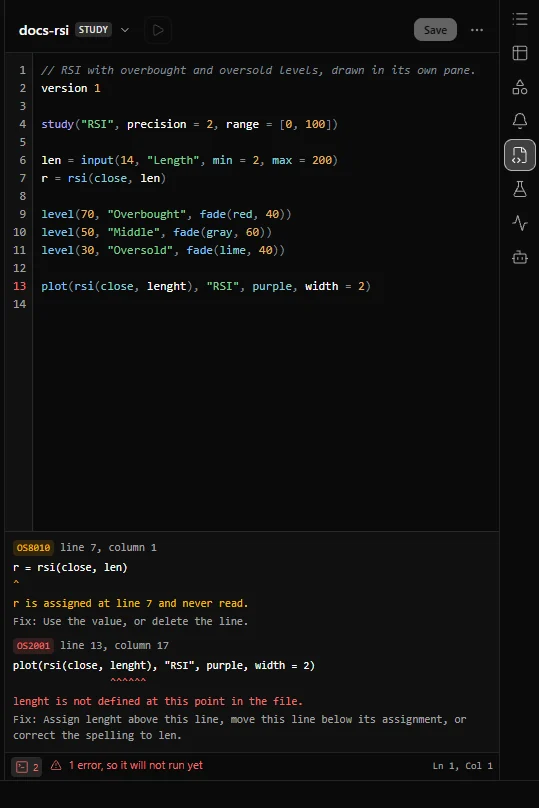
The editor does not complete names or show help on hover in this release, so the reference is where you check a name the assistant used.
These are the mistakes assistants make most often, and the diagnostic that catches each one:
| What the assistant wrote | Diagnostic | What to do |
|---|---|---|
No version 1 line | OS8003 (warning) | Add version 1 as the first line |
A name that does not exist: an invented function, a namespace prefix borrowed from elsewhere, or na for an absent value | OS2001 | Find the real name in the reference; absence is none |
| A name the reference marks planned | OS2020 | Rewrite without it; see the release notes for what is available |
An argument name that does not exist, such as colour | OS3002 | The fix lists every real argument name and the closest one |
plot(x) with no title | OS3012 | Add a title as the second argument |
| Two plots with the same title | OS3017 | Give each plot its own title |
A plot or an input inside an if | OS3006, OS3007 | Move it to the top level; plot none to hide it |
An order call such as buy() in a study | OS7001 | Change study( to strategy( |
| Two declarations | OS2008 | Keep one |
&&, ^ or braces | OS1001 | Use and, pow() and indentation |
| A semicolon at the end of a line | OS1007 | Remove it |
| A tab in the indentation | OS1002 | Indent with spaces |
| A number added to a string | OS2003 | Wrap the number in text() |
:= to change a variable | OS1018 | Write x = 2; assignment is always = |
| A function that calls itself | OS2005 | Write a loop |
| A stateful call inside a branch | OS8001 (warning) | Work it out at the top level and use the result in the branch |
When a diagnostic appears, copy its code, its message and the line it points at back to the assistant, and ask it to fix only that. The message is written to be acted on, and the full explanation of every code is in the Errors section, starting at Reading an error.
One caution about OS2001. Its fix offers the library name spelled most like the one that failed, which is a spelling guess, not a translation: for na it offers ma(), a moving average, when the absent value is none. Check the suggestion against the reference before you or the assistant accept it.
Here is what that looks like on the most common case, a plot without a title:
plot(ema(close, 20))The fix is one argument:
plot(ema(close, 20), "EMA 20", orange)What the diagnostics cannot catch
A script that compiles with no errors is a script the language accepts, not a script that does what you asked. Check the behaviour yourself before you rely on it.
- Read every warning. Warnings do not stop a script, and every OS8xxx warning describes something that is valid and almost never intended.
- Put it on a chart and look. Apply the study to a chart and compare its values on a few bars with a built-in study from the indicators dialog, or with values you work out by hand.
- Check where the lines start. A line that begins later than you expect is warmup, which is correct. A line that begins at bar 0 when it should not may mean the assistant used
orElse()to invent values. - Check higher timeframe reads.
req.timeframe()reads only closed bars unless the script writesmode = "developing"ormode = "lookahead". If the assistant wrote either, ask why: both can repaint. See Repainting. - Check the declaration options.
onUnconfirmed = truelets signals, alerts and orders act on a bar that is still forming. An assistant should not set it unless you asked for that. - Check the market assumptions. Session times in IST, the interval, lot sizes and the exchange are easy for an assistant to assume wrongly. The list of assumptions the instruction asks for is where to look.
- Check anything that depends on time of day. Session and calendar reads, such as
session.isIn(),session.isFirstBaror a dailyreq.timeframe(), come out absent where the host has not supplied the facts they need, and a condition built on them then never holds. Put the script on a chart and confirm those conditions fire where you expect. See Sessions and time.
For a strategy, the order of work matters more than the code:
- Backtest it from the Backtest panel, with realistic commission and slippage declared. See Backtesting.
- Read the report and the trade list, and check a few trades against the chart. See Reading a report.
- With OpenAlgo in analyzer mode, deploy it from the Strategies panel. The panel header reads Analyzer and the start button reads Start in sandbox, so its orders go to sandbox trading (analyzer mode in OpenAlgo). Let it run on the latest market data until you have seen it trade. See Sandbox and live.
- Only then decide whether to run it with live orders.
Related: The editor, Reading an error, Troubleshooting, Release notes.